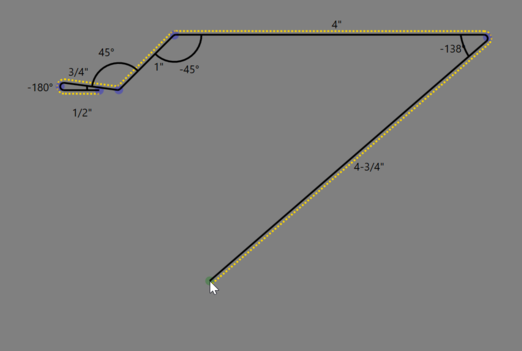
If you click one the designer drawing mode will be started. When in drawing mode a green circle will follow the mouse. If previous points have been selected a temporary line line will be drawn from the last point to mouse position.
Simply click or tap to add new points. You can remove the last point by clicking the middle mouse button. You can also type in the length and press enter.
To exit drawing mode, simply right click on the designer.
Moving points
To move a point simply click on the blue circle and drag the point to a new position.
You can also move points by editing the values directly in the segment list.
You can change the circle size in the Designer Settings, to make the points easier to select.
Removing Segments
You can remove a point by double clicking on it. You can remove multiple segments at once by selecting them in the segment list and pressing delete.
Inserting a point (Splitting a segment)
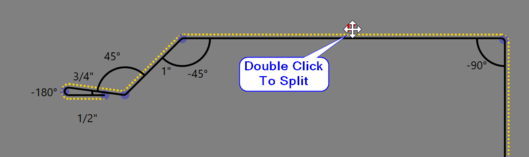
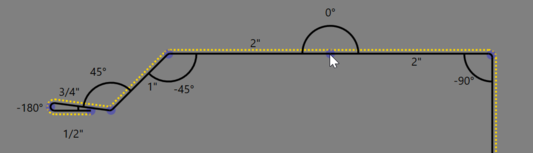
You can insert a point by double clicking the length label to split the segment, or by pressing the insert button from the segment list.
Repositioning Labels
When drawing trims labels may sometimes overlap each other. To prevent overlap you can zoom in using the scroll wheel on the mouse, or by adjusting the slider at the top. You can fit the trim to fill available space by pressing the Zoom to Fit button. If labels still overlap you can reposition them by clicking on a label and dragging it to a new position.