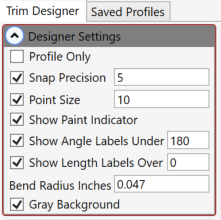
The designer options are preferences that can be set to customize the view of the trim. The designer preferences do not change the trim itself, but allows you to see the trim in different ways.
1. Checking the 'Profile Only' box allows you to see the profile of the trim with out any labels.
2. Snap can be turned of by unchecking 'Snap'. The precision can also be adjusted by changing the value on the right.
3. Points can be turned off or on. The point size can also be changed. Toggling touch mode also adjusts the point size automatically.
4. 'Show Paint Indicator' sets whether the yellow dotted line is drawn to indicate the painted side of the trim.
5. 'Show Angle Labels' determines whether or not the angle labels are shown. You can also set a limit so labels are only show if the are less than the specified amount.
6. 'Show Length Labels' determines whether or not the segment length labels are shown. You can set a limit so labels not shown for very short segments.
7. 'Bend Radius Inches' Determins the radius size for drawing hems and angles. It is preset to 0.047 = 3/64". WARNING: Setting this to a high value can cause unexpected results.
8. 'Gray Background' option allows toggling the designer background between white and gray.
All changes to designer preferences are saved for the next session. These settings are per machine allowing different preferences for each machine.