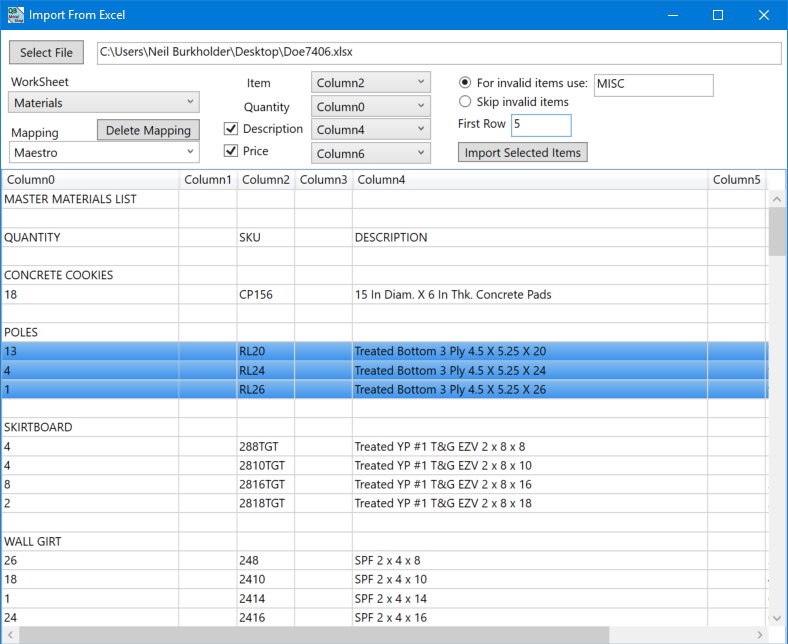
The import tool allows importing items from a spreadsheet to an order or estimate.
1. Click the Select File button and browse to the file you wish to import from.
2. Select the worksheet to import from. The list will show a view of the selected sheet.
3. Select the columns that contains the Item, Quantity, and optionally the Description, and Price.
4. Select the item to use for invalid items (items that don't match an existing item in QuickBooks). You can also choose to skip invalid items.
5. Set the starting row. If your sheet contains header rows you can select which row to start from.
6. Click the Import Items button to add the items to the order. Optionally you can select the rows to import, and import only the selected rows.
7. To save these preferences type a name in the mapping field and press Save Mapping. Next time when importing you can simply select the saving mapping to automatically set import settings.